Flat, solid colors are functional, but they rarely evoke emotion. In modern web design, creating a premium, engaging user experience often requires the smooth blending of colors. A decade ago, putting a gradient on a website meant asking a designer to export a massive, slow-loading JPEG image from Photoshop. Today, modern CSS allows developers to render breathtaking, infinite gradients natively in the browser. However, writing the complex, multi-stop CSS syntax by hand is incredibly tedious and prone to syntax errors. This is why frontend developers rely on a visual CSS Gradient Generator.
In this guide, we will explore the power of CSS gradients, how they improve website performance, and how you can use the free interactive generator on 99toolkit to design beautiful backgrounds in seconds without writing a single line of code.
What is a CSS Gradient Generator?
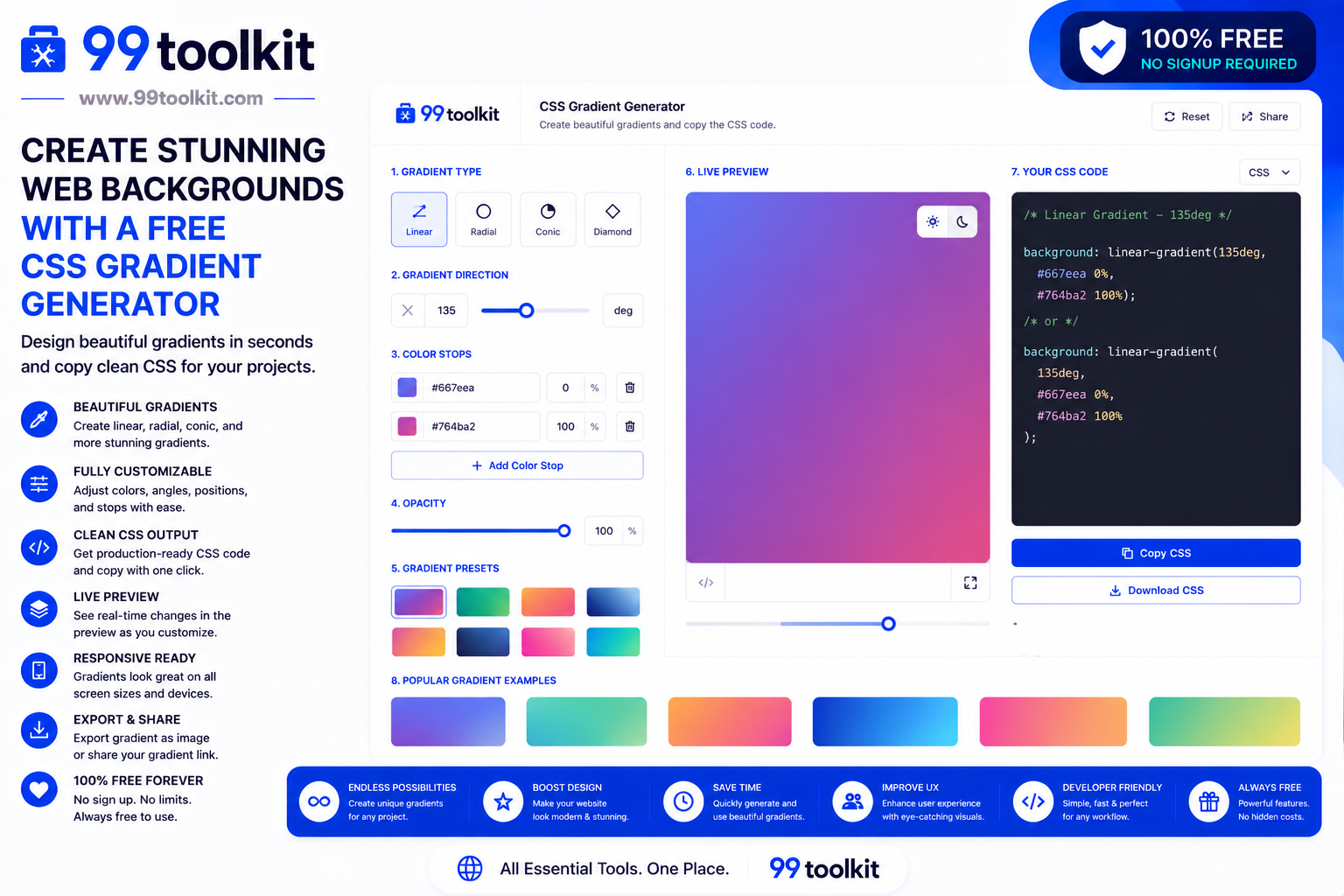
A CSS Gradient Generator is a visual UI tool that allows designers and developers to create smooth color transitions by dragging sliders, adjusting angles, and picking colors on a digital canvas.
Behind the scenes, the tool translates your visual design into complex CSS rules, specifically the linear-gradient() or radial-gradient() functions. Instead of manually typing out background: linear-gradient(90deg, rgba(2,0,36,1) 0%, rgba(9,121,121,1) 35%, rgba(0,212,255,1) 100%); and hoping it looks good, you simply slide color stops around until you are happy, and the tool outputs the exact code for you.
Key Features of the 99toolkit Gradient Generator
Our tool brings the power of professional design software directly into your web browser. Here is what makes it an essential bookmark:
- Linear and Radial Options: Choose between a straight-line transition (linear) or a circular transition radiating from the center (radial).
- 360-Degree Angle Control: Use a simple dial to rotate your linear gradient to any angle, perfect for creating dynamic diagonal backgrounds.
- Multiple Color Stops: Do not limit yourself to two colors. Add three, four, or five color stops to create complex sunset vibes, neon glows, or metallic sheens.
- Live Canvas Preview: Watch your gradient update instantly in full screen as you tweak the hex codes and slider positions.
- Cross-Browser CSS Output: Instantly copy the CSS code, which includes fallback properties to ensure your background looks great on older web browsers.
How to Use the Gradient Generator (Step-by-Step)
Designing a premium background takes less than a minute. Follow these steps:
- Select Gradient Type: Choose either “Linear” (straight) or “Radial” (circular) from the top menu.
- Set the Angle (Linear Only): If using a linear gradient, adjust the angle dial to dictate the direction the colors flow (e.g., 90 degrees flows left to right).
- Pick Your Colors: Click on the color stops (the little markers under the preview bar) to open the color picker. Select your starting and ending colors.
- Adjust the Blend: Drag the color stops left or right to control where the blending occurs. Pulling a color stop to the far right makes that color dominate the screen.
- Copy the CSS: Once the live preview matches your vision, click the copy button to grab the fully formatted background-image CSS code.
Why Use CSS Gradients Over Images? (The Benefits)
Replacing image backgrounds with pure CSS is a massive upgrade for your website’s architecture:
- Blistering Fast Load Times: A large background image can be 500KB or more. A CSS gradient is literally 100 bytes of text. It renders instantly, massively improving your Core Web Vitals and Google SEO scores.
- Responsive by Nature: A gradient automatically stretches, shrinks, and adapts to perfectly fill a 4K desktop monitor or a tiny smartphone screen without ever losing resolution or becoming pixelated.
- Text Readability: You can use a semi-transparent CSS gradient as an “overlay” on top of a photograph. This darkens the photo slightly, ensuring that any white text placed on top remains perfectly readable.
- Easy Animation: You can use CSS keyframes to slowly shift the angle or colors of a gradient, creating a mesmerizing, breathing background effect that feels highly premium.
Real-Life Use Cases
Where should you apply gradients in your UI design?
Hero Sections: The massive banner at the top of a modern SaaS website frequently uses a subtle, angled gradient to draw the user’s eye toward the main Call-to-Action (CTA) button.
Call to Action Buttons: Instead of a flat blue button, applying a slight vertical gradient (light blue on top, dark blue on bottom) gives the button a 3D, clickable, tactile feel.
Pricing Tables: Designers often apply a vibrant, glowing gradient border around the “Pro” or “Recommended” pricing tier to make it stand out from the free options.
Tips for Best Results
Avoid making your site look like it was built in the 1990s with these modern design tips:
- Keep Colors Analogous: The best gradients use colors that sit next to each other on the color wheel (e.g., Pink to Purple, or Blue to Green). Blending opposite colors (like Red to Green) often creates an ugly, muddy brown in the middle.
- Subtlety is Key: You do not need neon colors to make a gradient look good. A transition from dark gray to slightly darker gray adds an incredibly elegant, premium feel to a dark-mode website.
- Use Transparency: You can set one of your color stops to rgba(255,255,255,0) (completely transparent). This is perfect for fading a solid color out over a photograph.
Common Mistakes to Avoid
Watch out for these minor visual pitfalls:
- Hard Color Stops: If you place two color stops exactly on top of each other at the 50% mark, the gradient will disappear, leaving a harsh, solid line. Ensure there is space between stops for the colors to blend.
- Ignoring Contrast: If you put white text over a gradient that transitions from dark blue to very light blue, the text might become unreadable on the light side. Always test with our Contrast Checker.
Once you have built your beautiful gradient background, ensure your UI cards pop off the page by adding depth with our Box Shadow Generator.
FAQs
1. Do CSS gradients work on all mobile phones?
Yes. The CSS gradient specification has been fully supported across all major browsers (Chrome, Safari, Firefox, iOS, Android) for over a decade. It is completely safe to use everywhere.
2. Can I use a gradient on text?
Yes! With a clever CSS trick, you can apply a gradient to text. You set the gradient as the background, apply -webkit-background-clip: text;, and set -webkit-text-fill-color: transparent;.
3. Does a complex gradient use more CPU power?
No. CSS gradients are rendered natively by the device’s Graphics Processing Unit (GPU). Even on an old smartphone, rendering a gradient takes almost zero computing power.
4. How many colors can I add to a single gradient?
Technically, CSS allows for an infinite number of color stops. However, from a design perspective, using more than three or four colors usually makes the design look messy and chaotic.
5. Is the 99toolkit CSS Gradient Generator free?
Yes. Our visual gradient tool is 100% free to use for unlimited personal and commercial projects.
Conclusion
Mastering color blending is the easiest way to elevate your website from “basic” to “premium.” By leveraging native CSS, you can design visually breathtaking experiences that load in the blink of an eye.
Stop guessing the complex syntax. Bookmark the free CSS Gradient Generator on 99toolkit today. Play with colors visually, grab the perfect code instantly, and bring modern vibrancy to your digital projects.